

This article includes the following parts:
1. Introduction
Introduction
The Following Installation guide will help you to install Onebeat's Environment on your server for the First time on a plain machine.
This manual is at high level and does not take into consideration unexpected problems or missing Prerequisites that the system relays on. Our recommendation is to have an IS implementer/project manager that will escort the implementation process on-site, or in special occasion online.
Requirements
Before starting Onebeat installation, make sure that the below is installed:
- SQL Server is up and running (check Onebeat compatibility with SQL Server).
- SQL Server SMO 2008 is installed.
Onebeat Server Administration (SSA)
The SSA is the configuration tool of the Onebeat Server.
Installation
Execute OnebeatServerAdministion.exe
* Click 3 times Next to install. Click Finish to run the SSA.
Configuration
* Under Connection Tab input the following configuration:
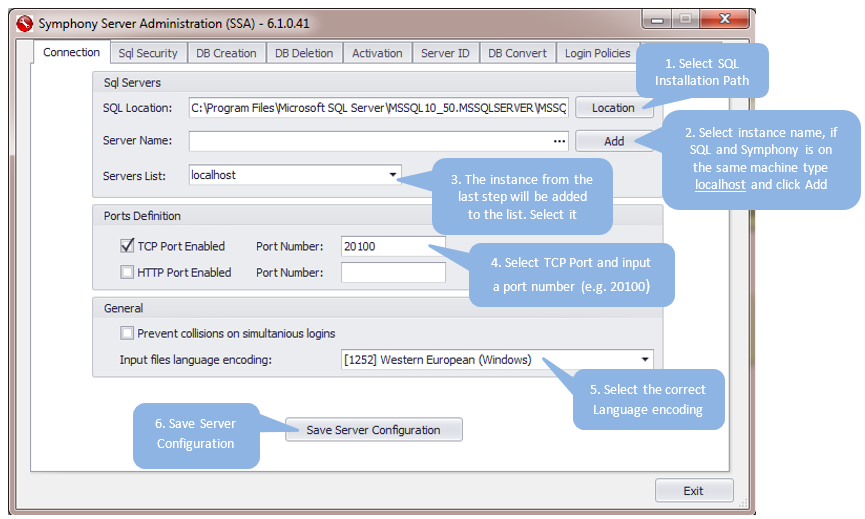
* Note: when pressing the 'Save Server Configuration' button, the SSA creates Onebeat Master DB that is necessary for using the system.
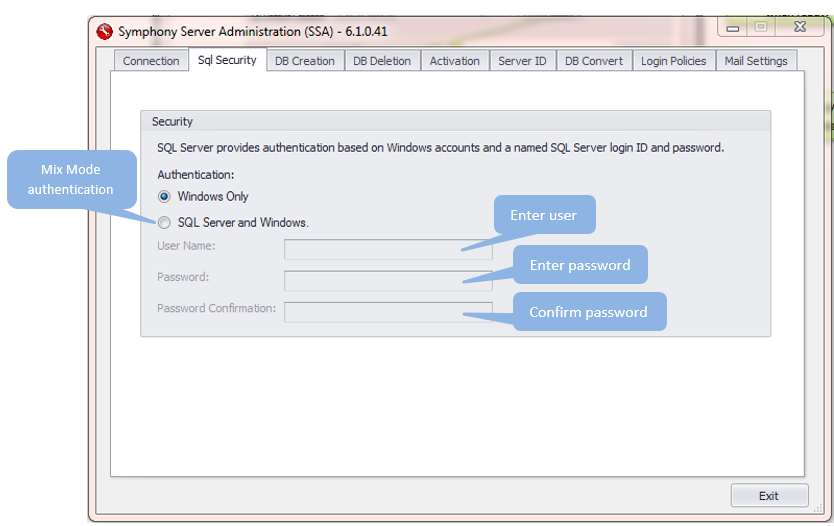
* Under SQL Security Tab select the authentication method, if the SQL Server is configured to Mix Mode authentication, insert its user and password.
* Under Server ID the user can view the license credentials.
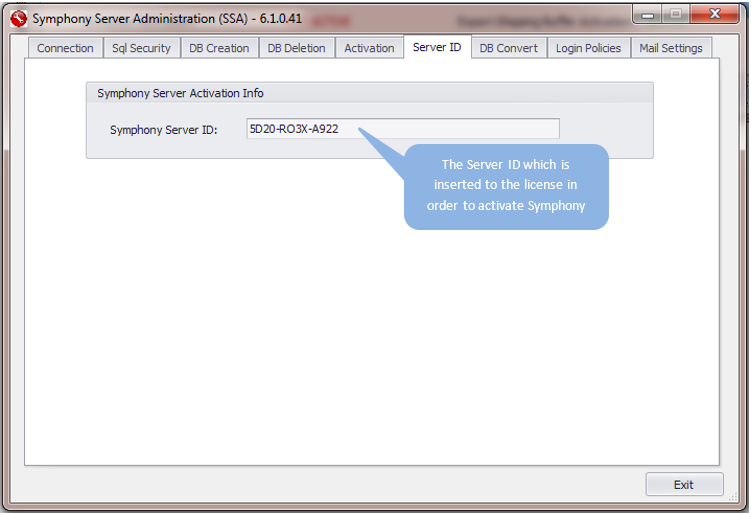
Send this Server ID for IS Support team in order to receive Onebeat License.
Once you will receive the license – continue with this Guide.
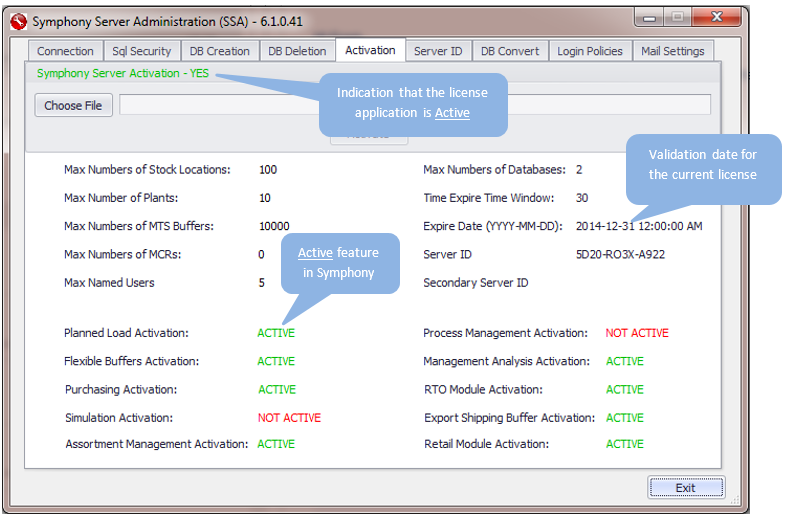
* Under Activation, the user can view the license credentials.
Press the Choose file > Browse for the License file you had received from Inherent Simplicity team (.slm file) > press OPEN > press Activate
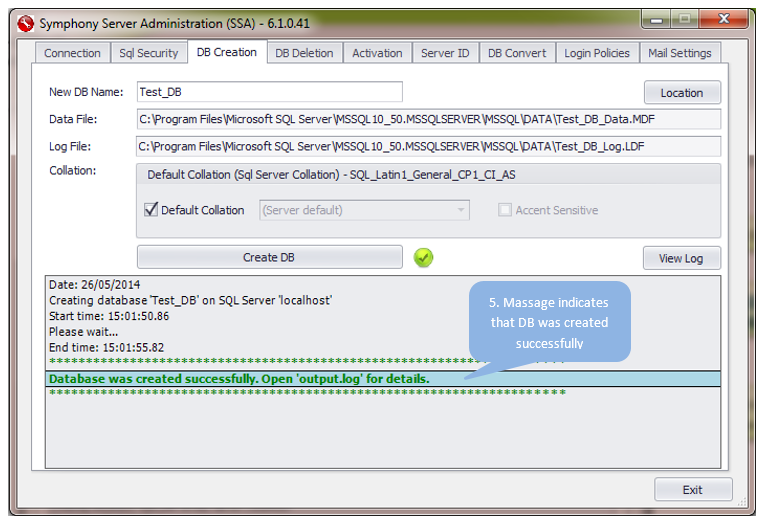
* Under DB Creation Tab:
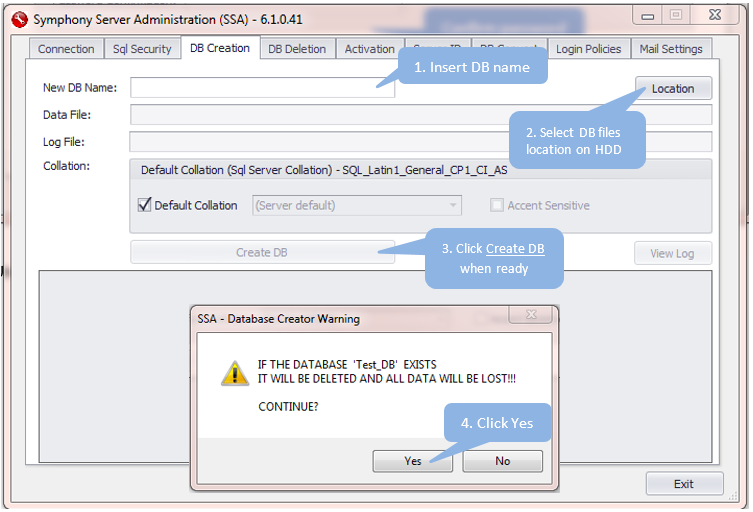
Click Yes when asked to allow collect performance statistics.
Onebeat Server Manager
This will install Onebeat’s server instance.
Execute OnebeatServerSetup.exe
* Click 3 times Next >> to install. Click Finish to run Server.
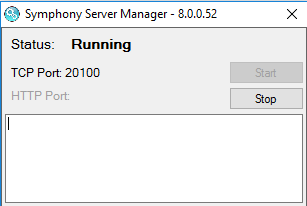
If all steps above completed correctly, all prerequisites were installed on the system and all configurations were done according instruction, Onebeat server should be running, as follow:
Onebeat Admin
This will install the Admin Application for managing Onebeat.
Execute OnebeatAdminSetup.exe
* Click 3 times Next to install.
* Click Finish to run Admin.
* For first login to the system, open Admin Applicationusing User: Admin and Password: Admin.
Onebeat Desktop
This will install the Melody Application for using Onebeat.
Execute OnebeatAdminSetup.exe
* Click 3 times Next to install.
* Click Finish to run Melody.
* Use Admin application in order to create Melody users.
Onebeat Auto Load
This will install Auto Load application for automating Onebeat processes.
Execute OnebeatAutoLoadSetup.exe
* Click 3 times Next to install.
* Click Finish.
* To run and configure Auto Load Application please refer to its own User Guide.
Comments
0 comments
Please sign in to leave a comment.